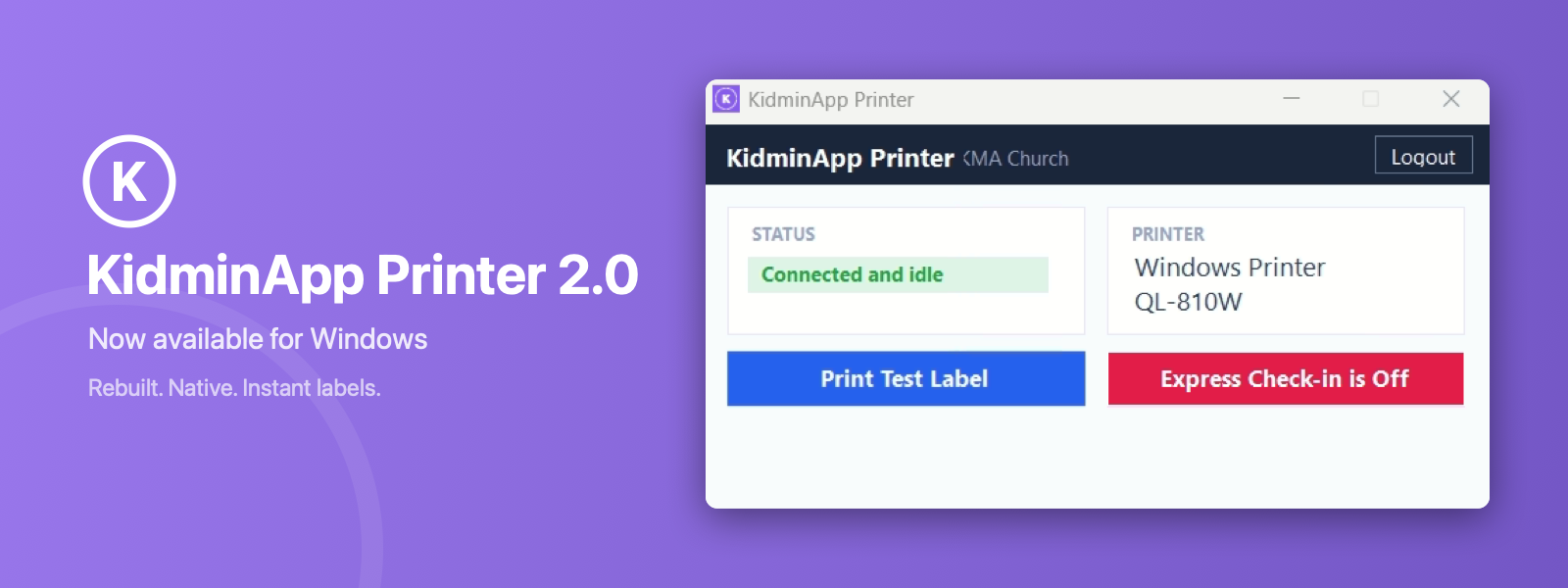
🖨️ KidminApp Printer 2.0 for Windows
Jay Hughes
KidminApp Printer 2.0 for Windows is available now. It’s a complete rewrite — a fully native Windows app that replaces the old version.
What’s new
The old app relied on a browser engine, a bundled Python runtime, and a special USB driver you had to install with a third-party tool. Any one of them could fail, and setup was harder than it should have been.
Version 2.0 removes all of that. The new app prints through the standard Windows print system with the normal Brother driver — the one Windows usually installs on its own.
The improvements:
- No more driver replacement — the third-party USB driver tool is gone entirely. If Windows sees your Brother printer, the app can print to it
- Labels print in about a second — the old app could take 10–30 seconds per label
- Live printer status — see at a glance whether your printer is ready, and print a test label with one click
- Clear errors instead of silent failures
- One small installer — download, run, log in. Setup takes about two minutes
What it does
Everything the old app did:
- Prints labels instantly when families check in on kidminapp.com
- All tag types: child tags, parent pickup tags with QR codes and shortcodes, volunteer tags, and bag tags
- Allergy alerts printed bold on child tags
- Express Check-in toggle
- Runs in the background from your system tray — closing the window doesn’t stop your labels
- Updates itself automatically
Requirements
- Windows 10 or 11
- A Brother QL-series label printer (QL-700, QL-810W, QL-820NWB, and more) with the standard Brother driver
- Brother DK-1201 labels (29mm × 90mm)
Get it
Download it from your dashboard’s printer setup page, log in with your Kidmin account, and you’re printing.
Mac users: the same rebuild is coming to macOS soon.